Android App · Free · Early Release

LaneLock

Lane-keeping tells you when you hit the edge. LaneLock shows where you are in between: centered, drifting left, drifting right, in inches. Your phone's camera finds the lane lines and shows the offset on a fighter-jet style HUD — or sends it to the optional LaneLock Dial, a round ESP32 display on the dash.

Version 0.4.0 · Android 8+ · Works offline · No account · No ads · Google Play soon
The HUD

Put the marker in the sight

The fixed gunsight is your vehicle; the winged marker is the lane center. Line them up and it turns green with LOCK brackets. Off center it goes amber, then red, and chevrons point the way to steer. The tape along the bottom shows the offset in inches or centimetres.
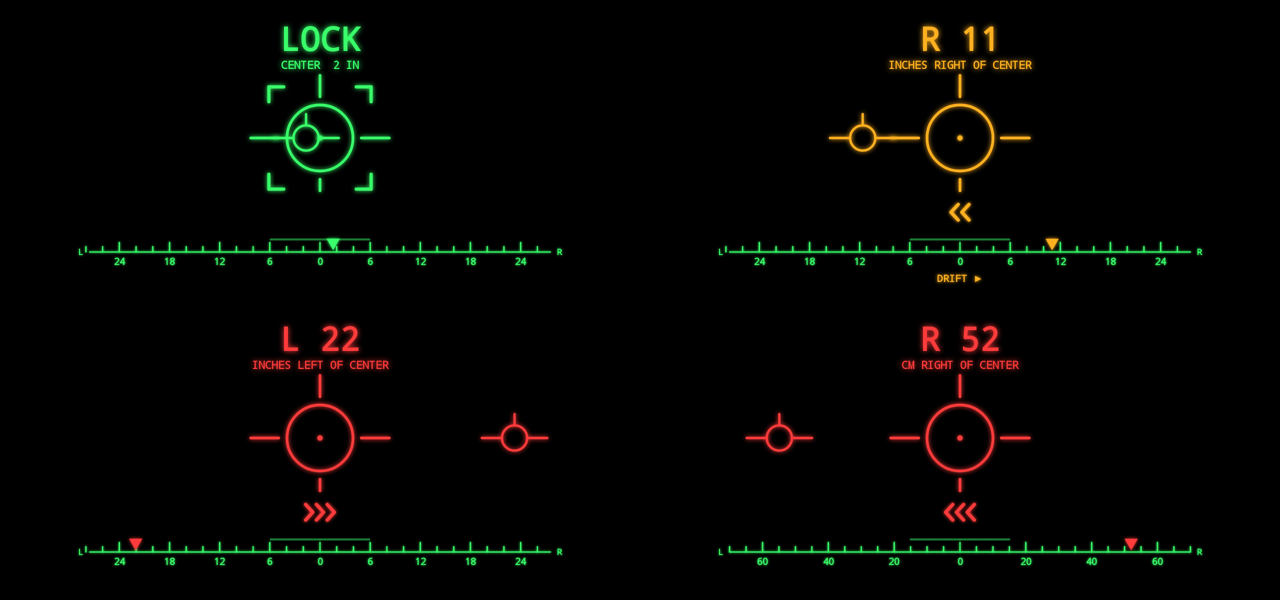
LaneLock HUD in four states: green LOCK centered, amber 11 inches right, red 22 inches left, red 52 cm right
What it does

A camera and some geometry

Phone only, or with a dial

Use the HUD on your phone — on black, or over the camera picture — or add the optional LaneLock Dial, a Waveshare ESP32-S3 round AMOLED that shows the lane, your vehicle and the offset over Bluetooth LE. The app finds the dial by itself.

Nothing plugged in

No OBD dongle, no CAN bus wiring. LaneLock only uses the phone's back camera, so it works in any vehicle without touching its electronics.

Upright or sideways

Mount the phone either way. The app turns with it and keeps a separate road area and center for each orientation. Sideways sees more road; upright works fine on highways.

Green, amber, red

Green within about 6 inches of center, amber to about 16, red beyond. Arrows appear while you're sliding sideways. Pick 12, 11 or 10 ft lanes, and inches or centimetres.

Install

Set up while parked

Until the Google Play release, the app installs straight from this site. Do the setup parked, or with a passenger.

  1. Download the APK on your phone using the button above, open it, allow installs from your browser or file manager, and tap Install.
  2. Mount the phone on the windshield or dash with the back camera looking straight down the road, as close to the middle of the vehicle as you can, and level.
  3. Open LaneLock and allow Camera, and Nearby devices if you're using a dial.
  4. Set the road area: tap Road area and drag the two orange lines — top just below the horizon, bottom just above the hood. Tap Done.
  5. Set center (passenger only, on a straight highway while you're centered): tap it once to cancel out an off-center mount. Long-press to reset.
  6. Optional: the LaneLock Dial. Flash the dial firmware to a Waveshare ESP32-S3-Touch-AMOLED-1.75 at offset 0x0 with any ESP32 web flasher, and power it from USB. It shows NO PHONE until the app connects. Tap it to change brightness; long-press to switch inches and centimetres.
Fine print

Glance, don't stare

LaneLock is a display, not a driver aid. Your vehicle's own systems, and you, stay in charge.

LaneLock works entirely on your phone. It has no internet access, the camera picture is analyzed and discarded frame by frame and never recorded, and Bluetooth is used only to talk to the dial. Read the full privacy policy.

Support

Like the app?

LaneLock is free, and it stays that way. If it saved you some time or annoyance, you can buy me a coffee. It helps pay for the next app.