One Brightness Knob
For Every Monitor

Nitpicker syncs the brightness of all your displays from a single slider — laptop panel and external monitors alike — with per-monitor offsets, per-monitor contrast, and optional automatic day/night dimming. It lives in your system tray.

FreeOpen SourceWindows 10 / 11100% Local

The Problem

Run more than one monitor and they never agree. Your laptop screen dims from the keyboard, but every external monitor hides its brightness behind a set of clunky physical buttons — and they all start at different levels. Matching them means walking down the row, poking through on-screen menus one panel at a time. Change the lighting in the room and you get to do it all over again.

Nitpicker drives every display from one slider in your system tray. Move the master level and the whole desk follows.
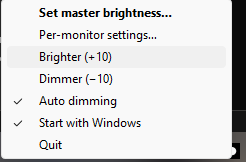
Nitpicker system tray right-click menu with master brightness, per-monitor settings, brighter and dimmer, auto dimming, and start with Windows
The tray menu — everything one right-click away.
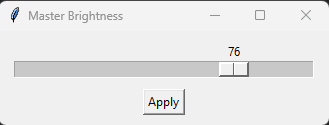
Nitpicker master brightness slider set to 76
One master slider drives every monitor at once.

Wait — what's a "nit"?

A nit is the real unit of screen brightness: one candela per square metre (cd/m²). It's the number on the box when a monitor brags about "400 nits." Nitpicker picks the nits for every screen on your desk at once — and yes, it's for people who like their brightness just so. Nit-picking, taken literally.

What It Does
One Master Level
A single slider in the tray drives the brightness of every connected monitor at once — internal and external.
Per-Monitor Offsets
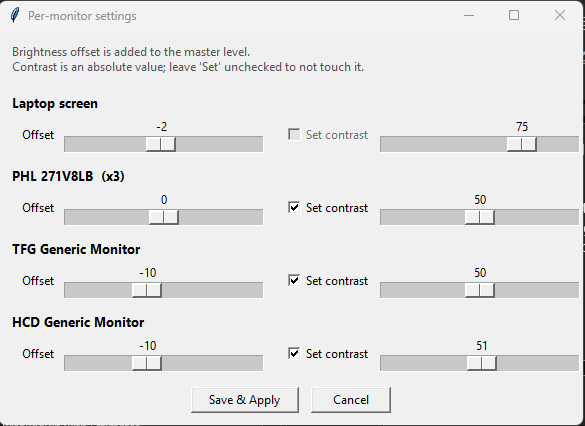
Each monitor can sit higher or lower than the master. Set a monitor that runs bright to −15 and it stays balanced with the rest as you dim.
Per-Monitor Contrast
Set an absolute contrast per monitor over DDC/CI — the same control buried in the OSD menu, now on one screen.
Auto Day / Night Dimming
Optional. Follows a sunrise-to-sunset curve for your location, with an optional webcam light-meter nudge. One toggle to switch it on or off.
Grouped by Hardware
Identical monitors share one setting automatically; different ones stay independent. Configure three of the same panel once.
Starts With Windows
A tray toggle adds Nitpicker to startup so your displays are in sync from the moment you log in.
Nitpicker per-monitor settings window showing brightness offset and contrast sliders for the laptop screen and each external monitor

Per-monitor settings — the three identical Philips are grouped into one row (×3), and contrast is greyed out for the laptop panel that can't do it.

How It Reaches Your Monitors

Nitpicker controls the internal laptop panel through Windows (WMI), and external monitors through DDC/CI — the same protocol behind the physical brightness buttons. That means real hardware brightness and contrast, not a fake dimming overlay.

It was built and verified on a real six-display setup: a laptop panel plus three Philips monitors and two USB monitors, all driven from one slider. Monitors are identified by their hardware ID, so identical panels are grouped together while different ones keep their own settings.

Dragging the master slider turns auto-dimming off so it never fights your manual choice; flip the toggle back on whenever you want the curve to take over again.

Install

Download Nitpicker.exe from the latest release and run it. No installer, no Python needed. A tray icon appears — right-click for the master slider, per-monitor settings, and the auto-dimming and start-with-Windows toggles. Or run it from source (Windows, Python 3.12+):

git clone https://github.com/VAROIndustries/Nitpicker.git cd Nitpicker pip install -r requirements.txt python -m amb

Settings live in %APPDATA%\Nitpicker\config.json — or just use the tray.

FAQ

Why is it called Nitpicker?
A nit is the actual unit of screen brightness — one candela per square metre (cd/m²), the number on the box when a monitor advertises "400 nits." Nitpicker picks the nits for every display on your desk at once, and it's built for people who are a little particular about getting brightness just right. Nit-picking, taken literally.
Can it control external monitors, not just my laptop screen?
Yes. It sets the internal laptop panel through Windows (WMI) and external monitors through DDC/CI — the same protocol the physical buttons use. Built and verified on a laptop plus five external monitors, all from one slider.
Can each monitor have a different brightness level?
Yes. Each monitor group has a brightness offset added to the master level, so a monitor that runs bright can sit at −15 while the master stays at 70. Identical monitors share one offset automatically; different monitors are configured independently.
Does it control contrast too?
Yes, on external monitors that support it over DDC/CI. Each monitor group gets an absolute contrast value in the per-monitor settings window. Laptop panels don't expose contrast control, so that slider is disabled for the internal screen.
Can it dim automatically like a phone?
Optionally, yes. Auto-dimming follows a sunrise-to-sunset curve for your location, with an optional webcam light-meter nudge — since most PCs have no ambient light sensor, the webcam is the practical way to read the room. It's a single on/off toggle.
How do I install Nitpicker?
Download Nitpicker.exe from the latest GitHub release and run it — no installer needed. Or clone the repo and run it from source with Python 3.12+.

More Free Tools

Want the backstory? Read the Nitpicker launch post on the blog.