The Problem
You want one Wi-Fi network at your desk — plugged into the monitor and the dock — and a different one when you're roaming around the house or the office. Maybe the desk sits next to a 5 GHz access point that's blazing up close, while the roaming network reaches every room. Windows has no setting for "use this network when that monitor is attached." So you switch it by hand, every time, and half the time you forget.
Chameleon does it for you. Dock, and it hops to your desk network within a couple of seconds. Undock, and it drops back. You never touch the Wi-Fi menu again.
Why "Chameleon"?
A chameleon changes color to match its surroundings. This little utility does the same thing with your network — the instant you dock at your desk, it adapts to the Wi-Fi you use there, and it changes right back when you unplug. Same instinct, applied to your laptop. (Yes, the tray icon is a lizard.)
What It Does
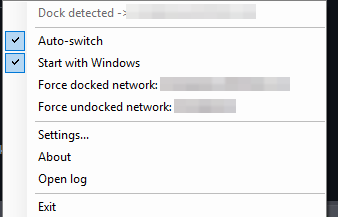
The tray menu: what's attached, the toggles, and one-click switches for your docked and undocked networks.
How It Works
Windows can already connect to any Wi-Fi profile you've saved — the trick is knowing when. Chameleon subscribes to a Windows device event, so it reacts within a couple of seconds of a device appearing or disappearing instead of polling in a loop. When your target device connects, it switches to the docked profile; when it's gone, it switches back.
It only ever switches between networks you've already joined yourself — it never handles passwords and never adds new networks. Everything runs locally, with no account and no cloud. A bundled helper lists every attached device, indented by type, so you can find exactly what to key off of — and if you dock through a USB-C hub, the dock's own device is usually the most reliable trigger.
Install
Download Chameleon-Tray.exe from the latest release and run it. No installer, no dependencies — a lizard icon appears in your tray. Open Settings from its menu, set the device to watch for and your two networks, and you're done. Prefer the scripts? Clone the repo and run the tray app directly (Windows, PowerShell 5.1+):
Settings live in Chameleon.config.json beside the app — or just use the tray. The repo also includes a background-watcher build for Task Scheduler and a portable build for USB.
FAQ
Monitor device, but if you use a USB-C dock, keying off the dock's USB device is usually more reliable — it cleanly appears and disappears when you connect the cable. The bundled Get-AttachedDevices.ps1 lists everything so you can pick.Chameleon-Tray.exe from the latest GitHub release and run it — no installer, no dependencies. A lizard icon appears in your tray with settings, manual switching, and a Start-with-Windows toggle. Or run the PowerShell scripts directly from the repo.More Free Tools
Want the backstory? Read the Chameleon launch post on the blog.